
It has been noted that some users may not fully understand how to upload images into their posts.
When creating the post there’s an option ‘Attach Files’ bottom left. Click on it
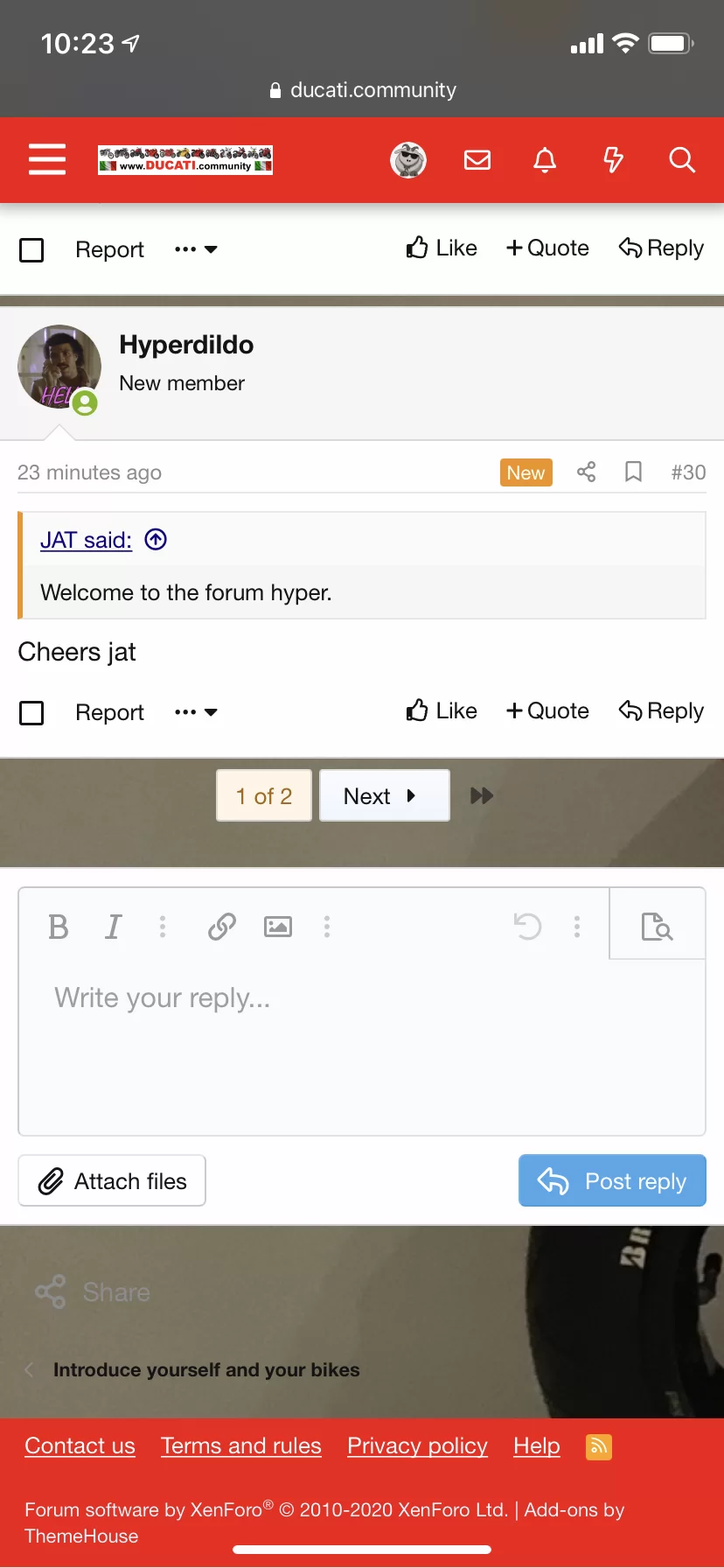
and it will open up your photos if on a phone or the Files window if on a desktop.
Select the photo(s) or files you want (pdfs and gifs are acceptable too). The image will upload and will have an icon ‘insert’ in the top left of it.
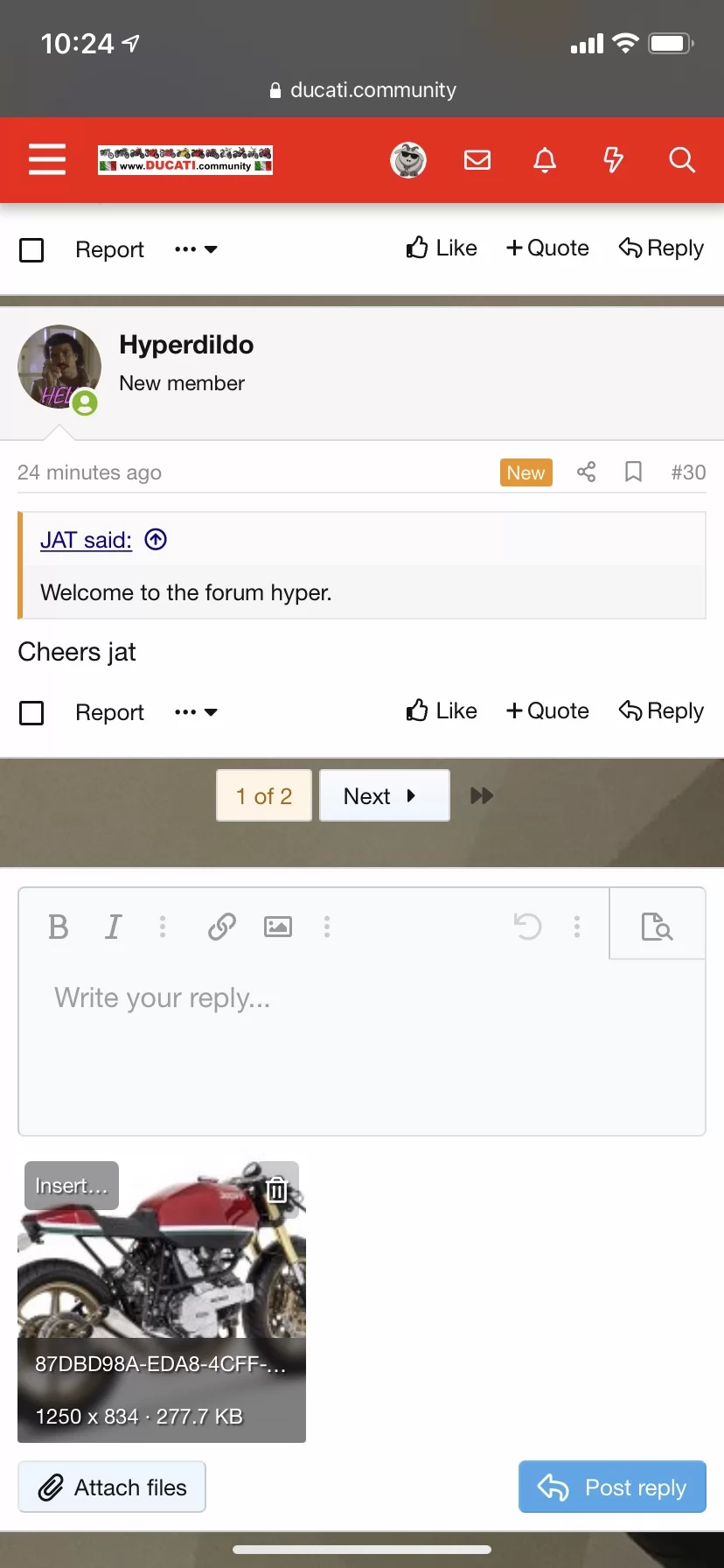
Click on the ‘insert’ and you’ll have an option to insert the image as a thumbnail or full size.

If you do not choose one of these options the image will automatically be inserted as a thumbnail when you post your post.
Also, if you just want to post a picture and no text then you must select one of the image options in order to insert the image into the post or else the system will think you are posting an empty post and will not permit that, forcing you to add some text even if it’s just one character eg .
Finally please note the photos options within mobile phones provide the capability to resize your photo before uploading it. As the more recent phones take images that are 8Mb or thereabouts it’s wise to learn how to do this. The system has a file size limit set at 4Mb (it was 2Mb but has been increased), the larger an image is the longer it will take to upload from your phone and download onto a viewer’s and no one likes waiting while a page loads. Images resized to 1Mb each or less and inserted as Full Image work best.
When creating the post there’s an option ‘Attach Files’ bottom left. Click on it
and it will open up your photos if on a phone or the Files window if on a desktop.
Select the photo(s) or files you want (pdfs and gifs are acceptable too). The image will upload and will have an icon ‘insert’ in the top left of it.
Click on the ‘insert’ and you’ll have an option to insert the image as a thumbnail or full size.
If you do not choose one of these options the image will automatically be inserted as a thumbnail when you post your post.
Also, if you just want to post a picture and no text then you must select one of the image options in order to insert the image into the post or else the system will think you are posting an empty post and will not permit that, forcing you to add some text even if it’s just one character eg .
Finally please note the photos options within mobile phones provide the capability to resize your photo before uploading it. As the more recent phones take images that are 8Mb or thereabouts it’s wise to learn how to do this. The system has a file size limit set at 4Mb (it was 2Mb but has been increased), the larger an image is the longer it will take to upload from your phone and download onto a viewer’s and no one likes waiting while a page loads. Images resized to 1Mb each or less and inserted as Full Image work best.